What are Device Drivers and Why Are They Important?
Video – VLog #42
How do device drivers work?
What are the steps in installing a device driver?
Where can you get device drivers?
Script – VLog #42
Willie Nicol: Hello and welcome to week 42 of The Techno Dinosaur Meets the IT Geek.
Willie Nicol: My name is Willie Nicol. I am the Techno Dinosaur, due to being technically challenged but I’m also a personal development life coach. I’m based in Troon, South Ayrshire, Scotland. With me today is my usual partner in crime, David Logan, who is the IT Geek. Hi David, how are you and where are you?
David Logan: Hi Willie, I’m great. I’m based here in Annan, south west of Scotland. I am the IT Geek who helps you take the challenge out of technology. I take the jargon out of technology so you can use it at ease, and don’t get stressed.
Willie Nicol: Great, David. Well, I have a technical question for you today. Are you ready?
David Logan: I am ready.
Willie Nicol: Right, here we go. We’ve talked a wee bit in the past, you and I privately but I’d like you to explain in greater detail. What are device drivers? What do they do for us and what do we need to do about them?
David Logan: Okay. Basically, in a nutshell, a device driver is a bit of software which connects your device to Microsoft Windows. I’ll base it on Microsoft Windows at the moment, that’s where my expertise is. The same applies for apple macs, your android phone, Linux operating system. A device is like your keyboard, you type into. Web camera is device in which we can see you on your tv screen monitor. These are all devices.
David Logan: What a device driver is, it basically connects that device to the operating system Microsoft Windows and lets the two communicate and operate as it should. Even as I talk here, the computer is going through millions of programming code to make sure you get the video and my voice through to your end. Does that explain the device driver?
Willie Nicol: Yeah, I’ve got that. That’s the means of communication. The software between the hardware which is the device, your printer, your webcam or whatever, and the operating system on your computer or laptop. We have discussed before about problems about device drivers not working or not connecting. How do we overcome that?
David Logan: Absolutely. So, with the onset of Windows 10, it’s basically plug in and play. Have you heard of plug and play?
Willie Nicol: Yip
David Logan: So, the majority of devices you can plug in and it works out the box. Which is great for the majority of people, the population. Now and again, we hit a snag, we we’re talking about an issue earlier on there whereby Microsoft did not have the proper driver for that device. In that case you can get different results, might not work or it might just malfunction. So, in this scenario here, lets stick to webcam for example, it may show my picture in black and white at your end whereas my end it’s all colour. That could be the typical malfunction. Or it might not show the video full stop.
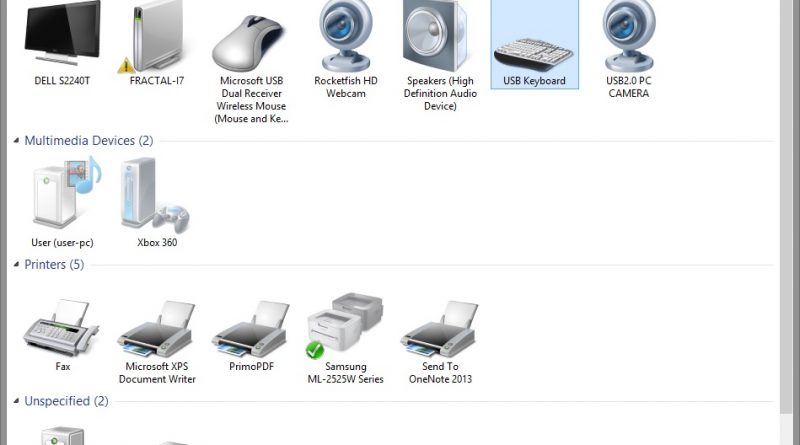
David Logan: Now, to check these, you need to go into what we call a device manager. On Windows 10, you go to the bottom left, your start button and select search, type in device manager and it’ll bring up a new window which will have all of your devices connected to your computer. If there is a malfunction, if the system is slow, it’ll show you an exclamation mark next to the device which is not correctly set up.
David Logan: So, your question, what was it again?
Willie Nicol: Well, when we get to that scenario, i.e. the connection’s not there or it’s faulty or malfunctioning, how do we remedy that?
David Logan: Okay. So, I’m going to take a step back there Willie. Microsoft have got a big database, thousands of device software in their database and they match it. But, in this scenario, if it doesn’t work, what you need to do then, unless you have a CD for that device, is to go onto the manufacturer’s website and download the device drivers for that device for that operating system.
David Logan: Need to make sure it’s the right operating system, is it Windows 10? Is it Windows 7? Is it 32-bit or is it 64-bit? Make sure you’ve got the right make and model and then through that, once you download that installation file, you can then go into device manager, uninstall the device, ask it to reinstall and it’ll ask you …. “from Windows updates or from an external device”? You select from an external device. That wording isn’t correct, it’s words to have that effect. And then you select where that file is that you have downloaded from the manufacturer’s website and just watch the prompts and go through it.
Willie Nicol: I must be getting better at this, David, because this is actually making sense. Cause I’ve had to do this before when my printer wouldn’t work, and it wasn’t the printer’s fault, and it wasn’t the computer’s fault. It was the connection bit, the software, the device driver and I had to go through all that rigmarole myself to get it to work. So, that’s explained it much more clearly to me. Is there anything else we need to know about device drivers?
David Logan: I would say just check them generally. One thing I would say with Windows updates, very quickly to knock off for this week, is if you check for Windows updates, sometimes newly out now is that you get optional updates. If you open that up, it sometimes has device drivers in that. Device drivers. So, basically, it’s Microsoft saying, “we’ve got some device drivers, do you want to install them?”
Willie Nicol: OK
David Logan: So, if you’ve got an issue with the web camera and it’s not on that list, go for it. Any questions to you, Willie? Or, to the viewer, fire them to me, I’m more than happy to help.
Willie Nicol: Great, David. I think that’s that well covered. To the viewer, if you’ve any technical problems, David’s your man. Any life coaching problems, I’m your man. So, all there really needs for me to say, stay safe, keep well and have some fun. So, it’s goodbye from me, Willie Nicol, the Techno Dinosaur.
David Logan: And from the IT Geek, have some fun but be safe. Have a great week everybody. Catch you next week.